Instance view
Watch one instance's status, counters and live values, and pin a field to a value you choose.
Click an instance in the device tree to open its view in the detail panel. The view updates live while the instance runs.
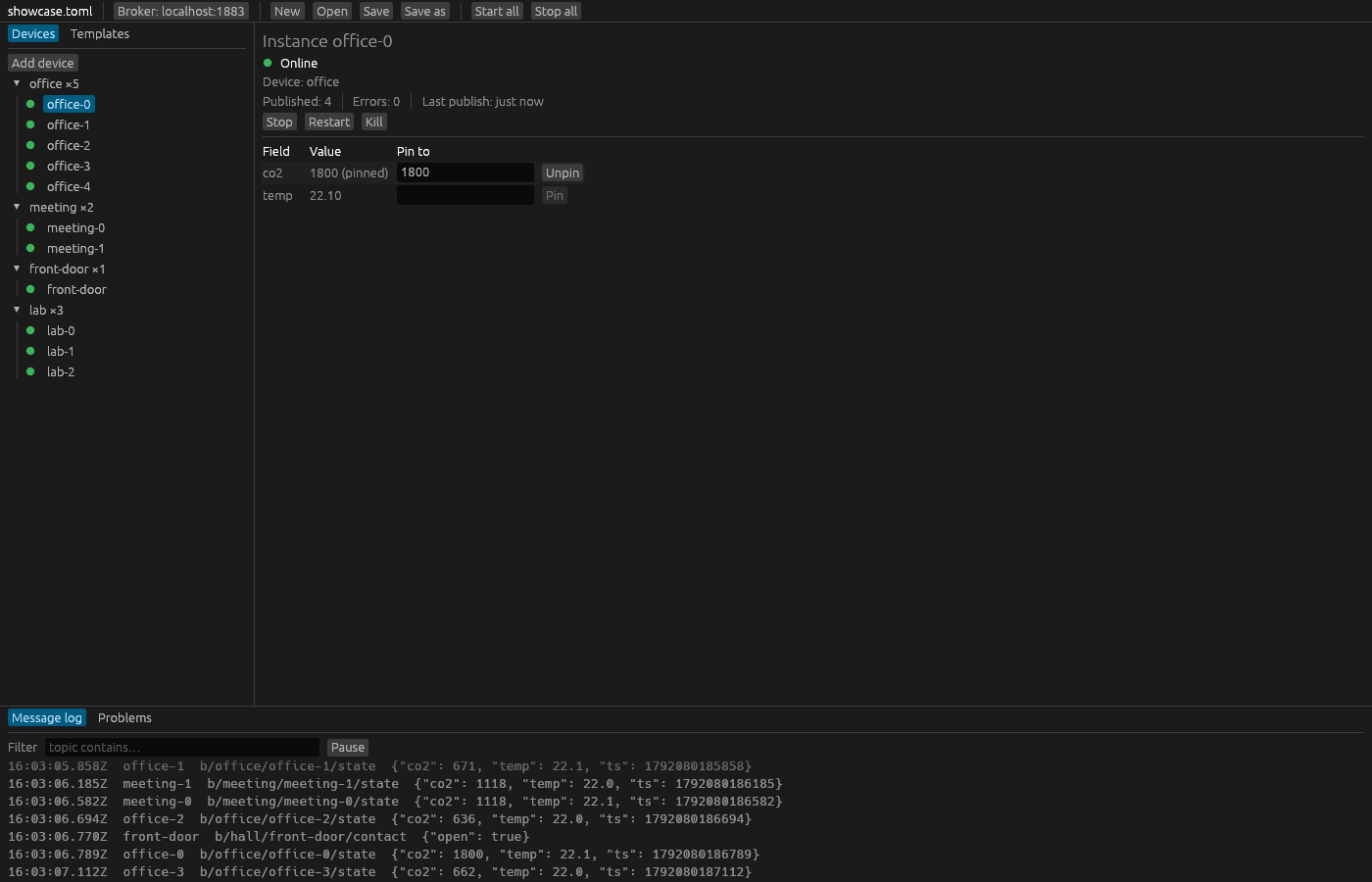
Status
The heading names the instance, for example Instance office-0. Below it, a coloured dot and a word show the instance's status:
| Status | Meaning |
|---|---|
| Stopped | Not running. |
| Connecting | Connecting to the broker. |
| Online | Connected and publishing on every tick. |
| Reconnecting | The connection failed or was lost, including when the broker cannot be reached at start. Senzor keeps retrying. Red text after the word shows the attempt number and the last error, such as attempt 2: …. |
| Failed | The instance stopped and does not retry: the broker answered but refused the connection (wrong credentials, for example), or the instance hit an internal error. Red text after the word shows the reason. |
How Senzor reconnects is described in Availability and Last Will.
The next lines show:
- Device: the device the instance belongs to.
- Published: how many messages the instance has published.
- Errors: how many messages could not be rendered or published.
- Last publish: how long ago the instance last published, such as just now, 3 s ago or 4 min ago, or never.
Notes in amber appear when the instance's settings no longer match the project:
- The project changed; restart this instance to apply it. The instance runs with the settings it started with. Click Restart to apply your edits.
- Its device has problems (see the Problems tab); it keeps running with its last valid settings.
- This instance is no longer in the project; it disappears when stopped.
The last two mark an orphan; see Running devices.
Stop, Restart, Kill and Start
A running instance has three buttons:
- Stop publishes the
offlinemessage (if the template has availability) and disconnects cleanly. The broker does not send the Last Will. An instance that is still connecting or reconnecting stops without publishing anything. - Restart stops the instance, then starts it again with the project's current settings. Orphans have no Restart.
- Kill drops the connection without
offline. If the template has availability, the broker then publishes the Last Will. Use it to test how your consumer handles a device that disappears; see Simulating a device dropping off.
A stopped or failed instance has Start instead.
Field values
The table lists the template's fields. Value is the value of the instance's last tick, or – before the first one. Whole numbers show as they are and other numbers with two decimals; this rounding is only for display and does not change what the instance publishes.
Pinning a value
A pin replaces a field's generated value with a value you choose, so you can make a device report what you need to test, such as a CO2 level above an alarm threshold:
- Type the value into the field's Pin to box, for example
1800. - Click Pin.
The value column now shows 1800 (pinned), and from the next tick the instance publishes 1800 for that field instead of a generated value. Click Unpin to hand the field back to its generator.
Senzor reads what you type as a number if it can (1800, 22.5), then as true or false, and otherwise as text, as typed (open). So 007 is pinned as the number 7.
- Pin is disabled while the box is empty or holds only spaces, and while the instance is not running.
- Unpin is disabled while the instance is not running.
- A pin lasts until you unpin it or the instance stops. Stop, Kill and Restart all clear the instance's pins.
See Values and generators for how pins fit into each tick.